Auto Refresh Plus
Installing the plugin / Setting up the plugin / Setting up auto start
Manually starting tabs
Official developer site: https://autorefreshio.com
Official developer help: https://autorefreshio.com/support
If you find that you are constantly logging into TAPS, KIT and other resources right at critical moments (just as you've got that ancil in the bag) or when you're assisting passengers with disruption then this might be of some use to you.
Auto Refresh Plus is an automatic page refresh extension that will periodically refresh pages and tabs in your browser, unobtrusively in the background keeping your pages active and online. It also comes with a host of clever tricks up it's sleeve such as, but not limited to:-
- Auto recognition and auto-start of timers on certain pages
- Hard refresh mode so each refresh pulls through up-to-date content
- Multiple tabs with multiple refresh times
- Visual timer that restarts each time you interact with a page
Installing the plugin
You can easily install the autorefresh plugin in your browser of choice (or both) by visiting the respective plugin pages on either the Microsoft Edge Store or the Chrome Webstore.
You can also click the bookmark below and the page will allow you to perform a one-click install into the browser you are currently using.
 AutoRefreshPlus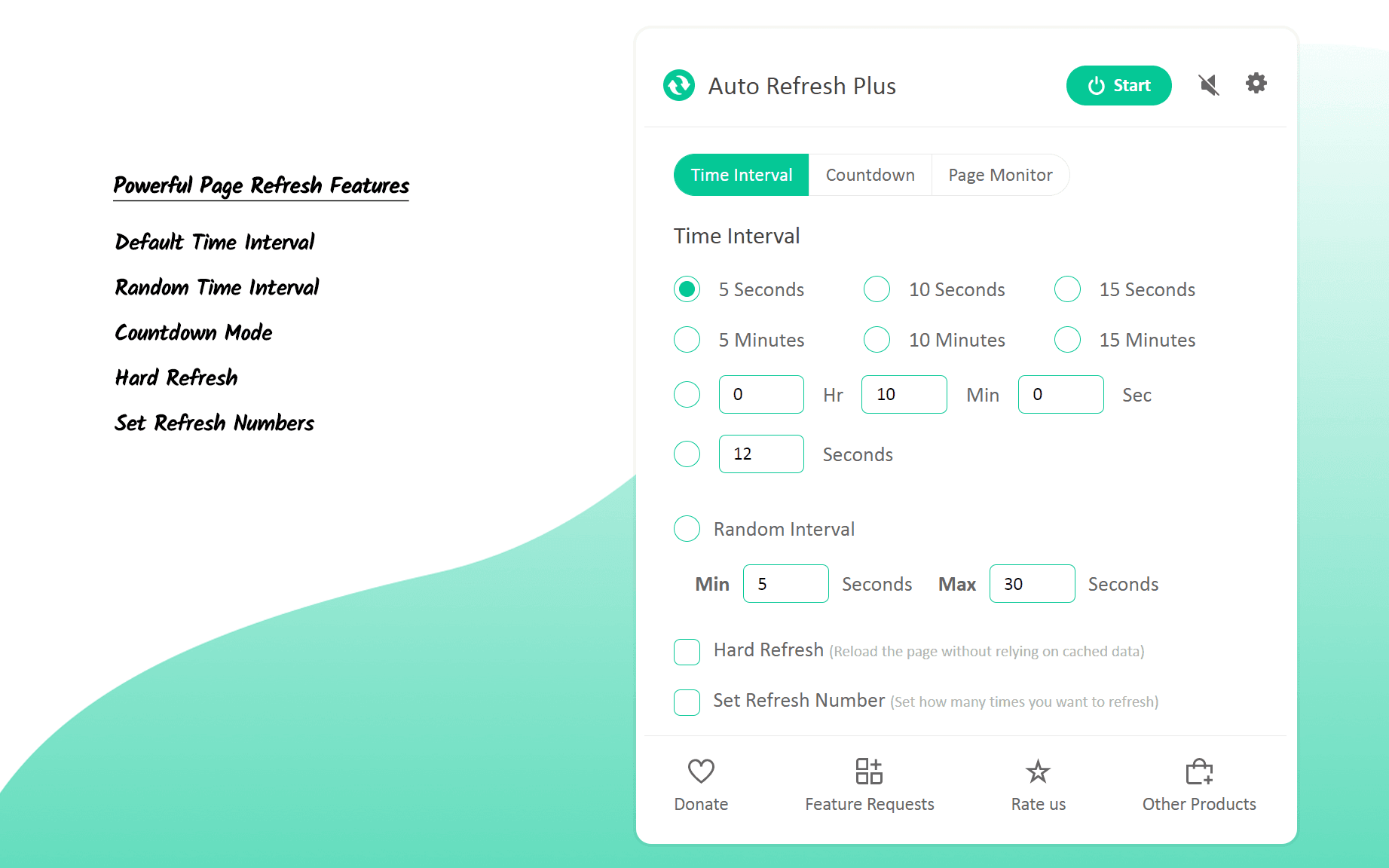
Setting up the plugin
As soon as you install the plugin, it will fire up in your browser and automatically open the settings page, you can either close this for now and manually set your browser tabs from the extension shortcut, or you can use this opportunity to setup the auto-start on pages like KIT or TAPS.
Setting up auto-start
- From the settings main page, go to 'Autostart' from the left hand menu.
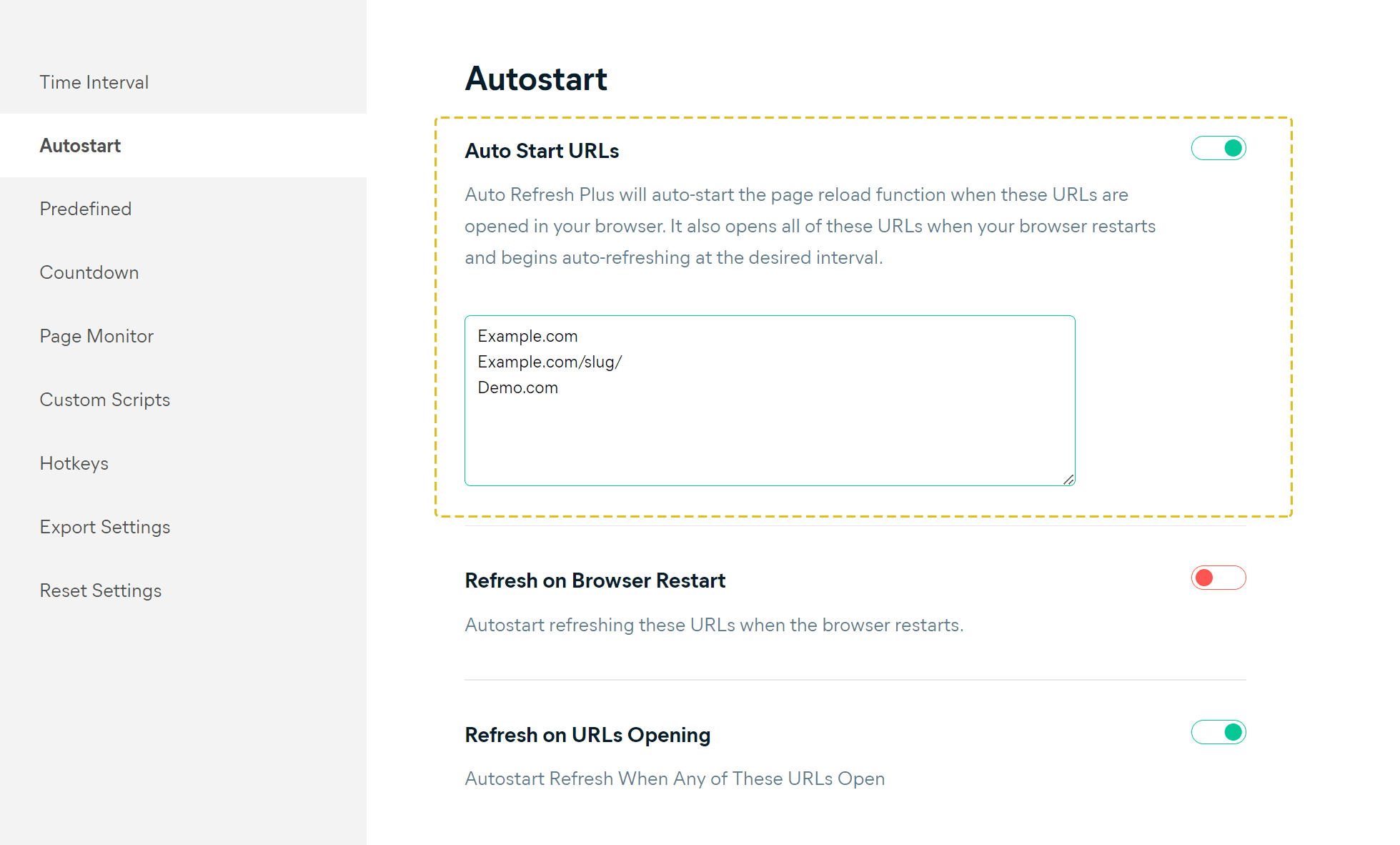
- Flip the 'Auto Start URLs' switch so that it turns green.
- Copy the URL of the link you want to enable auto-start on, there are some links for KIT and TAPS below that you can copy and past into the box here.
- Make sure the 'Refresh on URLs Opening' is also in the 'on' position.
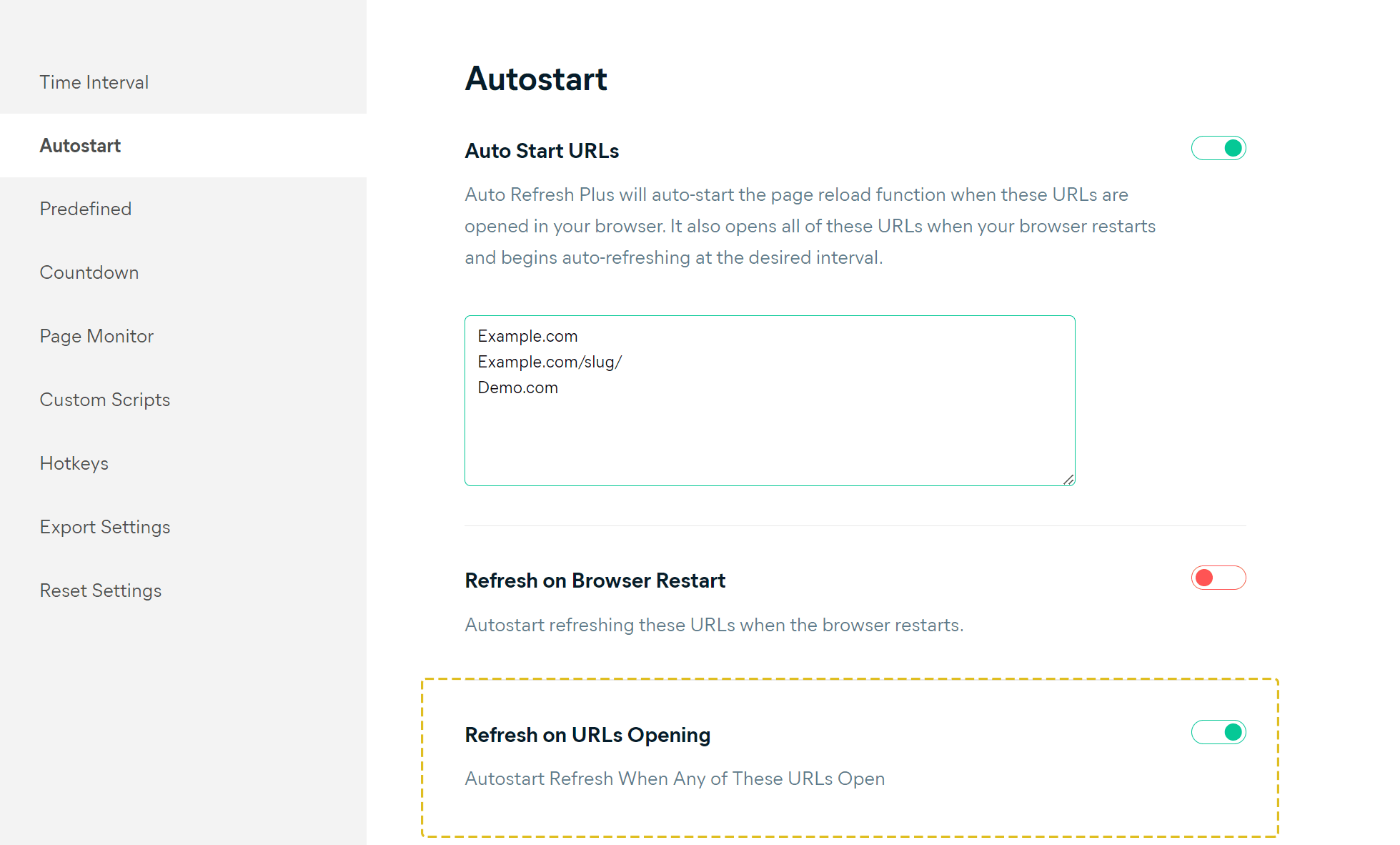
At this point you can close the browser tab with the settings, refresh the pages and you should see the timer automatically start on the extension.
Link to KIT link to kit
Manually starting tabs
You can also choose to manually switch the auto refresh plugin on for pages directly from the extension dropdown in the browser, just look for the green icon in the extensions area of your browser.
Once you've located it, click on it follow the options below:
- Set the required time interval for the auto-refresh, I usually choose 5 minutes because most interactions in KIT are quick and easy.
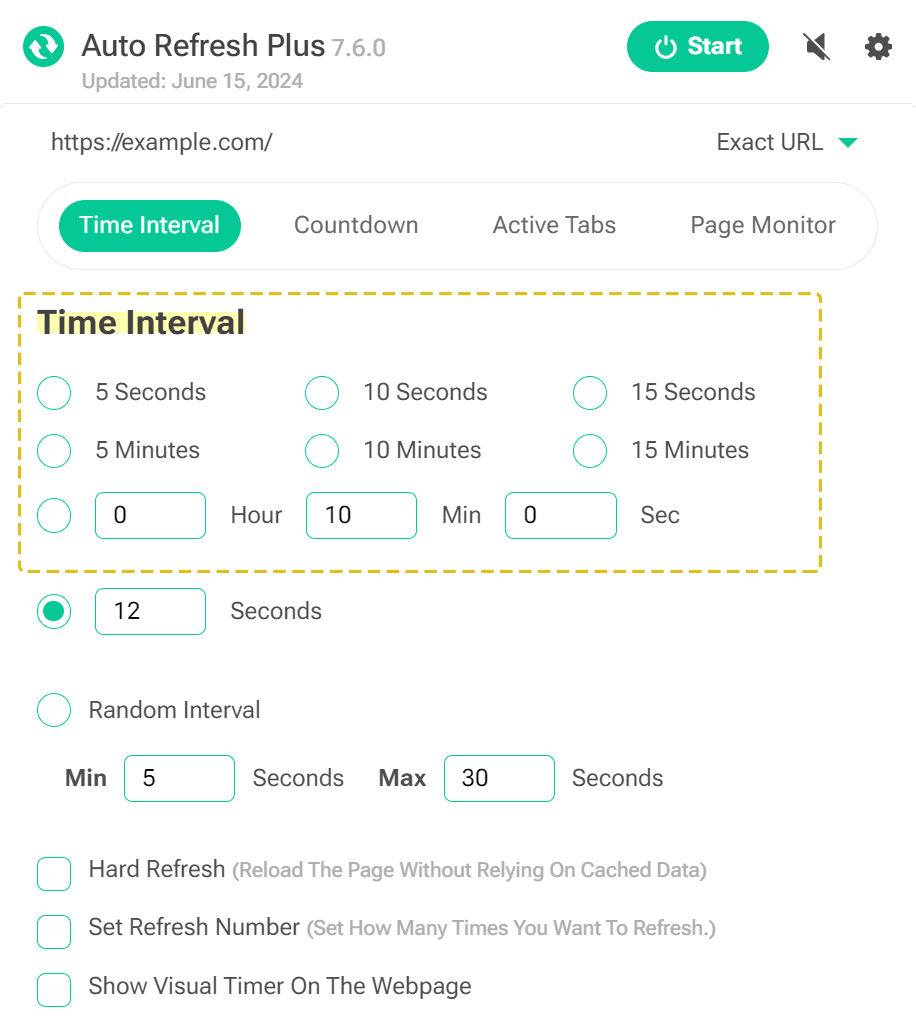
- Ensure the 'Hard Refresh' option is ticked and then click the green 'Start; button in the top right corner.
- Finally, tick the 'Stop refreshing when interacting' option.
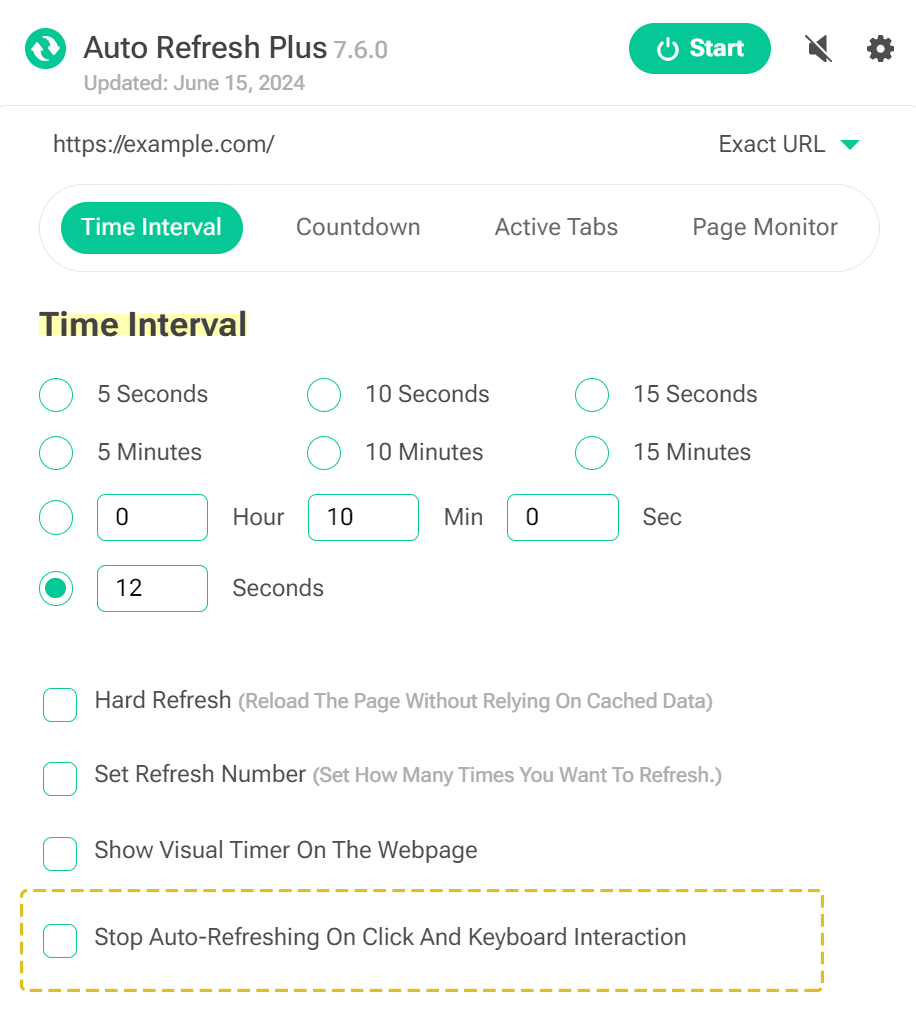
By ticking this last box you are stopping the page from refreshing whenever you interact with it, which is particular useful in TAPS because the page can refresh and you would lose all of your inputted traveller information, so with this option that does not happen.
You will then see your page added to the 'Active Tabs' section of the dropdown.
Further help and assistance
If you require any assistance with the plugin, or want to configure this further/explore the different features you can visit the official developer site and view the support articles online.
